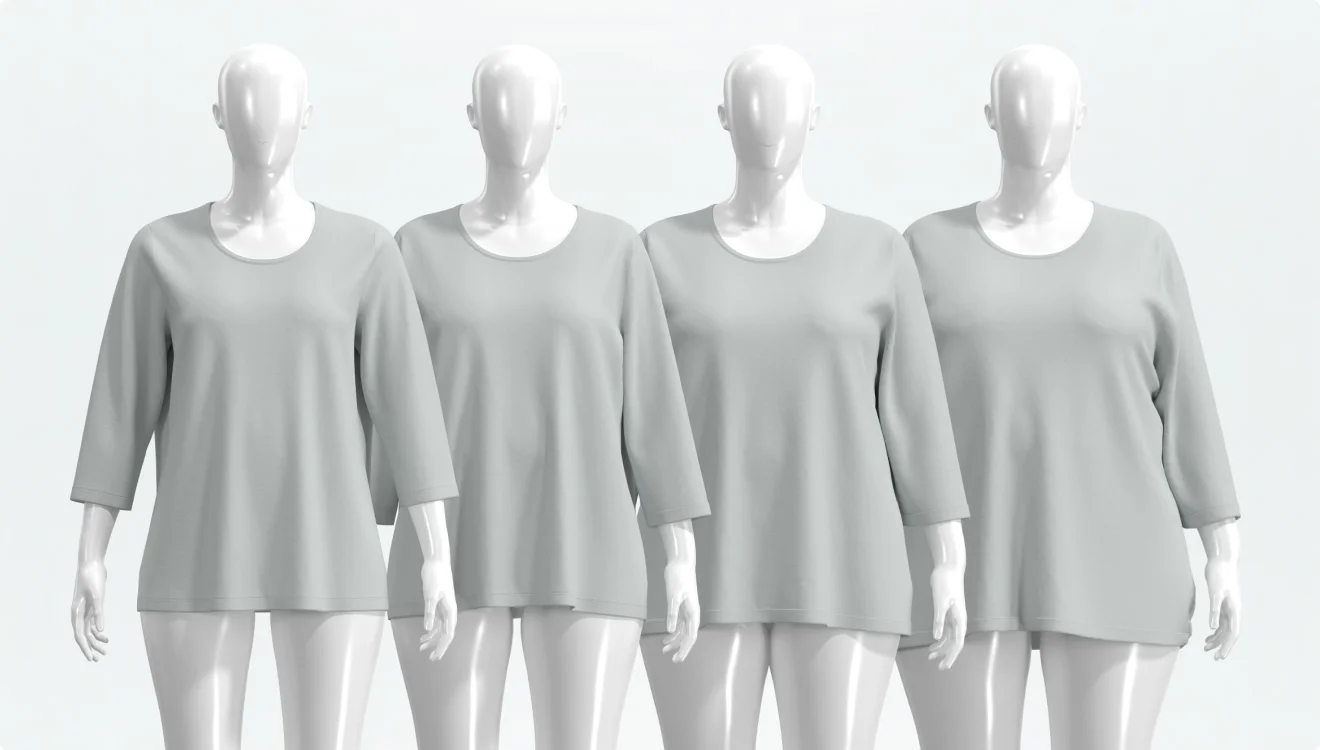






How to Turn Fit Measurements Into Pattern Edits in CLO
A walkthrough of using CLO's four fit maps, Pattern Drafter, and POM tools to review and revise a pattern.
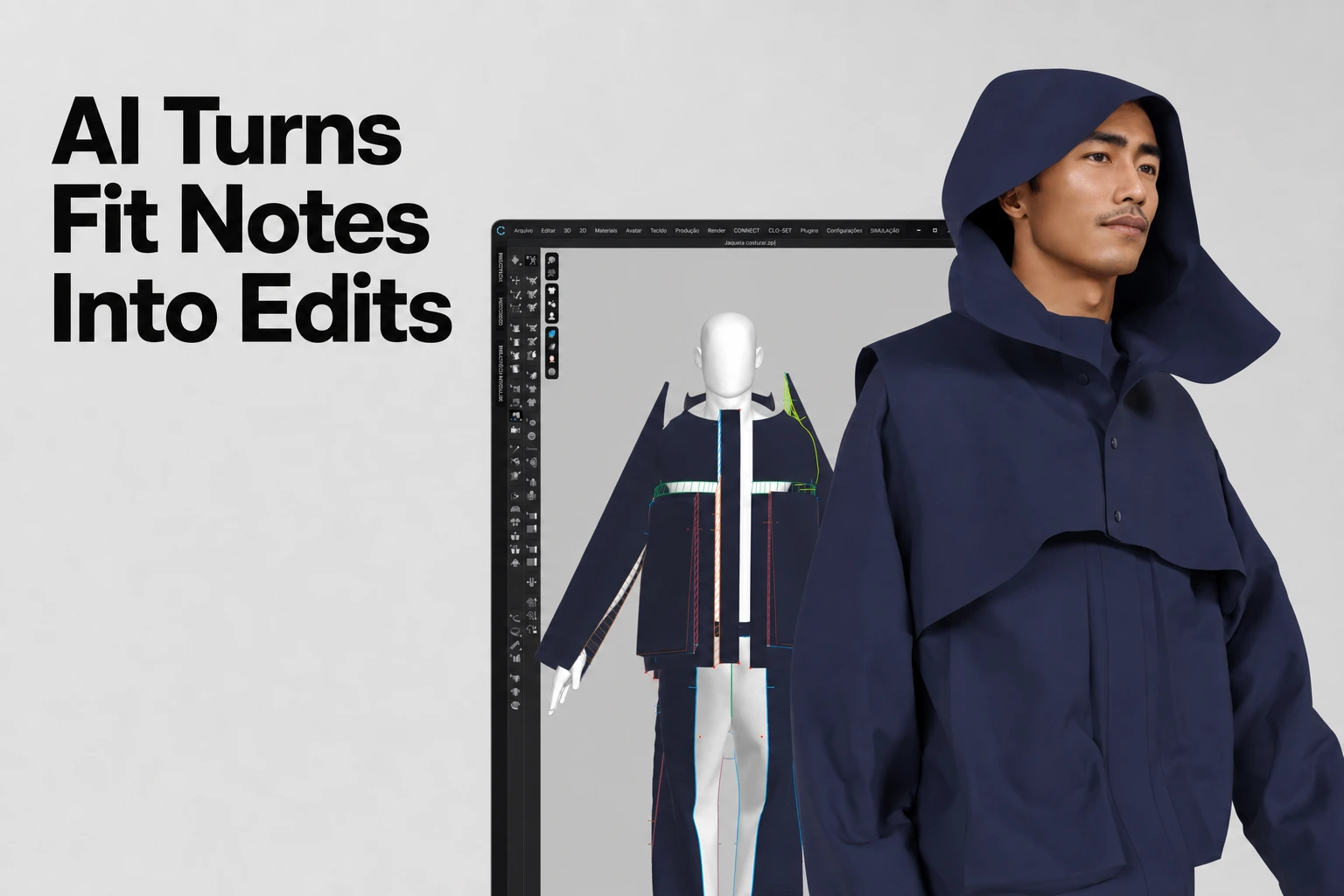
The short version
From flagged fit issue to edited pattern
Use CLO’s four fit maps to read the simulated garment, then decide which pattern measurements need changing. For a pattern created in Pattern Drafter, change those values through Pattern Drafter > Edit or the Edit POM tool. The Calculator derives measurement values; it does not automatically resolve a fit issue. Pattern Drafter can also generate a starting pattern from an image or a written prompt. Validate the result and fit before production.
Where the fit note comes from
CLO doesn't give you a written comment the way a factory fit report does. Instead, you drape your pattern on an avatar and read the fit off the simulated garment with four fit maps. The Stress Map colors the fabric by the force pulling on it per unit area. It runs an eight-color scale, from zero distortion in blue to 100 kPa in red. The Strain Map shows the garment's stretch rate as a percentage. Tightness bands show up in the Fit Map, from a wearable range up through Tight, Very Tight, and Can't Wear in red. The Pressure Map reads the force the garment puts back on the avatar itself.
In Strain Map Fabric Mode, the wearable stretch limit is calculated from fabric properties and can also be adjusted manually. A selected point reports its stretch direction and percentage relative to the defined limit. Review the input properties and limit before deciding how to revise the garment.
Turning the reading into a pattern edit
Many teams bring their blocks into CLO as DXF files from an existing CAD system, and that remains the established workflow. The steps below apply to patterns created in Pattern Drafter; a DXF-imported pattern is revised with CLO's regular 2D pattern tools. Pattern Drafter can also generate a starting pattern from an image or a written prompt.
- Enter your pattern measurement values in Pattern Drafter and click Create. CLO builds a parametric pattern from those values and generates its points of measure (POMs) at the same time, added to the POM Object Browser.
- When a fit reading tells you a measurement needs to change, go to Pattern Drafter > Edit, change the value, and apply it. The pattern is redrawn from the new value.
- For a single POM, use the Edit POM tool: click the point of measure on the pattern and enter a new length directly. (CLO Pattern Drafter).
Carrying the edit across sizes and derived measurements
CLO's grading tools support distance-based, ratio-based and multi-field grading adjustments. In Grading Review, you can simulate each graded size and compare the garment and avatar views together; if the pattern geometry changes after simulation, simulate the affected size again.
The POM Calculator, new in CLO 2026.0, handles the case where the number you need isn't one you measured directly but one you derive from other measurements. Pull an existing POM's value into the Calculator Notepad, run whatever math the derived measurement needs, and apply the result back to the POM list in the Object Browser. If you later edit the original measurement, the calculated one doesn't update on its own: you reopen the notepad and click Update to propagate the change. (CLO Calculator Notepad).
FAQS
Fit notes and pattern edits in CLO
Can CLO flag measurement issues on a 3D clothing sample automatically?
The fit maps visualize simulated stress, strain, tightness and pressure. Review those results with the measurements and material inputs; a colored overlay is not an automatic comparison with every specification value.
Which CLO tool cuts down repetitive measurement edits?
CLO's grading tools support distance-based, ratio-based and multi-field adjustments. The Calculator Notepad calculates values from POMs and can add the result to the POM list. After a source POM changes, use Update in the Notepad to refresh the calculated value.
Does Pattern Drafter apply a fit-review result to the pattern automatically?
No. The designer interprets the fit result and chooses a measurement change, then applies it with Pattern Drafter > Edit or Edit POM. Then simulate again and repeat the fit check.
Is there an AI tool in CLO for reviewing fit changes on a 3D garment?
The fit review itself uses the four fit maps rather than an AI tool. Pattern Drafter can generate a starting pattern from an image or prompt, and Pattern Drafter > Edit and Edit POM apply measurement changes to patterns created in Pattern Drafter.
Try the workflow in CLO
Explore CLO to see Pattern Drafter, Auto POM & Grading, and the fit maps on your own patterns.
Related reading